User Manual
Welcome to Stammbaum – your cross-platform application for recording, analysing and visually presenting family histories. This manual guides you from creating your first database and maintaining persons, relationships and media to building custom queries, running data-quality checks and producing print-ready exports.
Overview and Getting Started
Main Window Layout
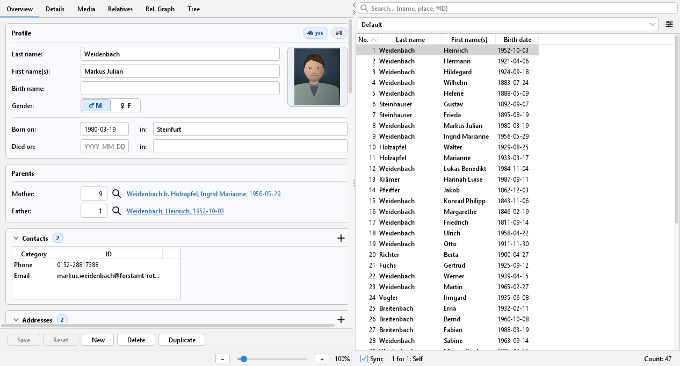
The main window is divided into two resizable workspaces together with the menu bar at the top and the status bar at the bottom:
- Selected person workspace (left): Six tabs group every view and record belonging to the active person: Overview (core vital data, parents, subtables, close relatives), Details (rich-text notes with interactive links), Media (photos, certificates, audio/video), Relatives (sortable kinship table), Relatives Graph (two-dimensional kinship grid) and Tree (graphical family tree). When switching to the wide „Relatives“, „Relatives Graph“ or „Tree“ tabs, Stammbaum automatically collapses the person list so the diagram can use the full window width; drag the divider on the right edge whenever you want to bring the list back alongside it.
- Person list with search and queries (right): Provides the live search bar (Ctrl+F), the query bar with clickable filter chips, the collapsible Query Editor and the multi-column sortable person table.
- Status and action bars (bottom): On the left you find the edit buttons (Save, Reset, New, Delete, Duplicate), clickable validation messages in red (clicking jumps straight to the relevant help topic) and the zoom bar; below the person list sit the Sync toggle and the row counter.
Quick Start in 5 Steps
- Create or open a database: Choose File → Database..., keep „SQLite (.sqlite)“ selected, click New... and enter a file name (e.g. „Family.sqlite“). You can also drop an existing .sqlite file – such as the demo database demo.sqlite („Weidenbach Family“) shown in this manual's examples – onto the window via Drag & Drop.
- Add your first person: On the „Overview“ tab click New, fill in at least a first or last name, biological sex (M or F) and known birth details in YYYY-MM-DD format, then click Save (Ctrl+S).
- Connect family members: Add further records and assign parents by double-clicking the „Mother“ and „Father“ ID fields on „Overview“ – or use the blue quick links such as Add child, Add sibling and Add relation (e.g. category „Marriage“).
- Attach portraits and documents: Drag image or document files onto the „Media“ tab. Portraits are automatically classified as „Profile“ in the background and appear immediately on „Overview“ and inside the family tree.
- Style and share your tree: Open the „Tree“ tab, customise frames, watermarks and generation depth under Edit → Settings... (tab „Tree“), and export the chart via File → Export tree... as a high-resolution PNG image.
Common Practical Workflows
- Recording spouses and children: Create both partners as person records. On either partner's „Overview“ tab, click Add relation (or right-click the „Relations“ subtable → New), select category „Marriage“, choose the spouse and enter wedding date and place – the marriage is synchronised automatically on both partners. For each child, set both parents in the „Mother“ and „Father“ fields.
- Sharing a wedding or group photo across several people: Link the file once through a shared media category instead of duplicating entries: right-click a marriage row under „Relations“ on „Overview“ and select Create media category (or right-click inside „Media“ → Categories... / Ctrl+K) and add all depicted family members.
- Importing a GEDCOM file or second database and merging duplicates: Run File → Import GEDCOM... or Import database... (all imported IDs are renumbered without collisions). Then switch to View → Comparison view, review candidate pairs side by side and combine duplicates with << Merge.
- Checking quality and exporting with privacy protection: Under Edit → Scripts... run „Check plausibility“ and „Unify place names“. Then choose File → Export GEDCOM..., pick the desired person scope in „Export options“ and enable Anonymise living persons.
Recording and Editing Persons
Person records are maintained on the „Overview“ and „Details“ tabs. Unsaved edits enable the Save button (Ctrl+S), and Stammbaum prompts to save before switching records or closing the database. The View menu toggles between „Single view“ and Comparison view and lists recently visited persons at the bottom.
„Overview“ Tab
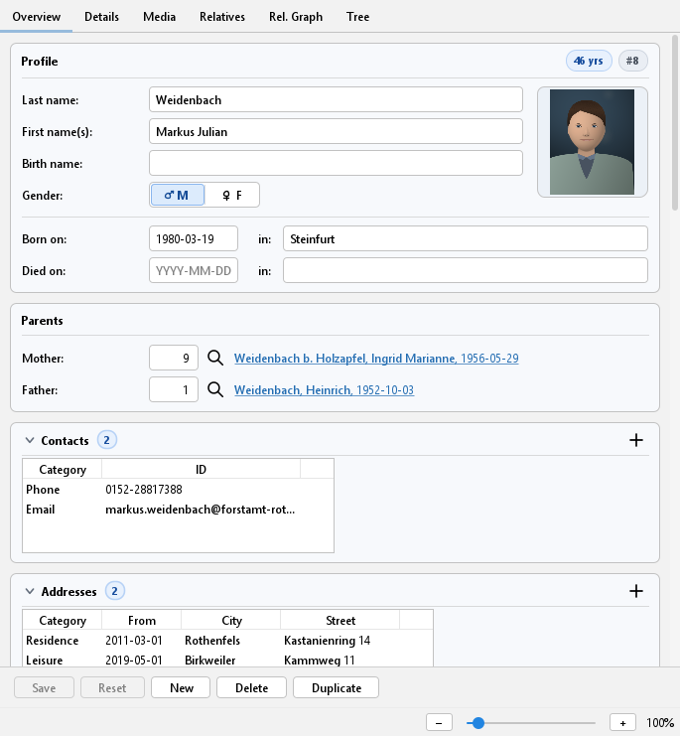
The „Overview“ tab brings together all key information about a person:
- Core and vital fields: Person ID (assigned automatically), last name, first name(s), birth name, sex, date and place of birth, date and place of death, plus calculated age.
- Parent links: „Mother“ and „Father“ combine a numeric ID field on the left (double-click or right-click to open the person selector) with a clickable blue hyperlink on the right that navigates straight to that parent.
- Profile portrait (top right): Displays the active portrait; clicking it opens the Media tab.
- Five subtables with quick-add links: Contacts, Addresses, Activities, Events and Relations show a compact blue „Add ...“ link while empty and expand into an editable table as soon as entries exist.
- Automatic close-relatives tables: Below the subtables, Stammbaum automatically lists existing close blood relatives (Parents, Children, Siblings – with quick-add links – plus Grandparents, Grandchildren, Aunts/Uncles, Cousins and Nieces/Nephews). Double-click any row to jump to that relative.
- Status-bar validation: Invalid input (such as a malformed date or non-existent person ID) highlights the field and displays a clickable red message in the status bar that opens the corresponding manual section.
Mandatory Fields and Naming Convention
Every person requires at least a first name or a last name, plus biological sex (M = male, F = female) so parent roles and gendered kinship labels can be determined accurately.
Choosing a Person
Wherever another person is referenced (Mother/Father on „Overview“, partner in „Relations“, or Person A/B in Kinship path), you can either type their numeric ID directly or press double-click, Enter or right-click to open the selection dialog. The list provides live full-text filtering and automatically pre-filters plausible candidates by context (for example, Mother candidates are female records whose dates are compatible with the child's birth). Enter 0 or clear the field to remove a reference.
Date Fields
Dates follow the ISO pattern YYYY-MM-DD (4-digit year, 2-digit month, 2-digit day separated by hyphens). To reflect partial historical sources accurately, Stammbaum supports shortened dates and wildcards:
| Input | Meaning | Internal Range (Min. / Max.) |
|---|---|---|
| 1952-10-03 | Exact date (3 October 1952) | 1952-10-03 to 1952-10-03 |
| 1952-10 | Year and month known, day unknown | 1952-10-01 to 1952-10-31 |
| 1952 | Only year known | 1952-01-01 to 1952-12-31 |
| 189?-??-?? or 189? | Unknown individual digits (1890s decade) | 1890-01-01 to 1899-12-31 |
| ? | Currently unknown, research still in progress | Open |
| + (date of death only) | Person is known to be deceased, date of death unknown | Treated as deceased (including privacy exports) |
Auto-Completion and Input Shortcuts
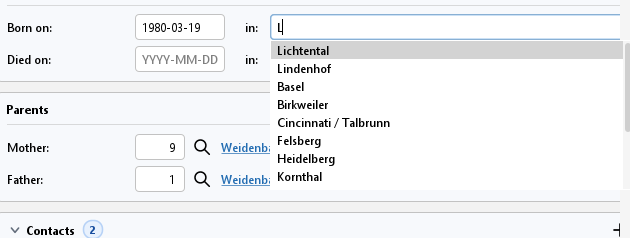
In recurring text fields (last name, first name(s), birth name, places of birth/death, plus street, city, country, label and organisation in subtables), Stammbaum suggests matching values from existing records as you type – including individual given-name tokens when entering multiple first names.
- Press Ctrl+Space to open suggestions manually at any time.
- Use Up / Down to highlight an item, Enter or Tab to accept it, and Esc to close the popup.
- Instant field revert with Esc: Pressing Esc in a modified text field (while no suggestion popup is open) restores its previous value; if the field has no pending edit, Esc closes dialogs as usual.
Profile Image

Stammbaum automatically uses the first image (lowest position value) in the „Personal“ category whose „Content“ column on the Media tab is set to Profile as the person's portrait on „Overview“, in tree nodes and in image columns. Newly added portraits are classified as „Profile“ automatically in the background, or can be set manually in „Media“. Click the portrait on „Overview“ to jump straight to „Media“.
Notes (Details)
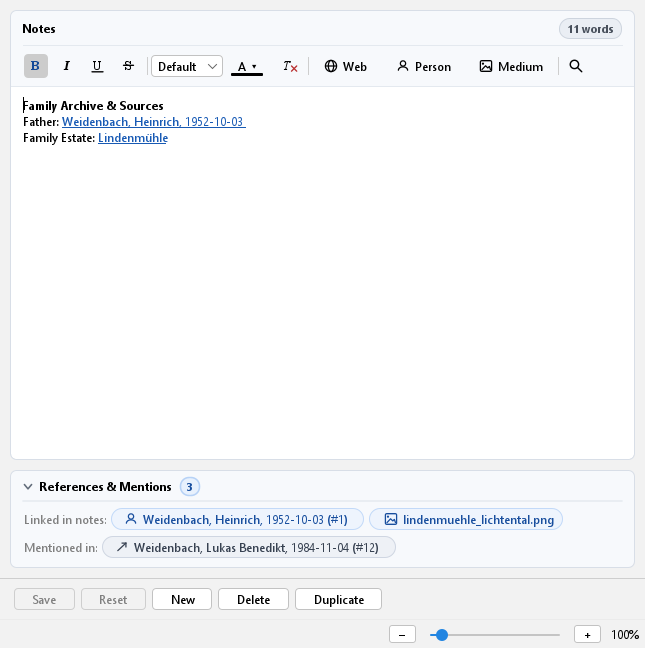
On the „Details“ tab, the modern „Notes“ editor card (with live word and character count in the card header) expands to fill the entire workspace for biographies, transcriptions, and source citations, complete with a compact formatting and link toolbar:
- Rich text formatting: Bold (Ctrl+B), Italic (Ctrl+I), Underline (Ctrl+U), Strikethrough, Font size, Choose text color (A), Reset default color, and Clear formatting (Tx).
- Interactive links: Insert links to external websites via Web (Ctrl+K), to persons in the database via Person (atomic person links that keep displayed names in sync), or to media items via Medium.
- Context link bar & inline search: Whenever the cursor is on a link, the context bar offers Open, Edit, and Remove (or use Ctrl+Click / double-click). Press Ctrl+F (F3 / Shift+Enter) to search right inside the notes editor.
- References & Mentions: The collapsible card below lists all outgoing targets linked in these notes as well as incoming backlinks from other persons mentioning this person.
Subtables and Relations
Each person can hold any number of structured entries across five subtables: Contacts, Addresses, Activities, Events and Relations (Marriage, Partnership, Friendship, Religious marriage). Relations always connect two persons and stay synchronised in both directions automatically when created, edited or deleted.
Double-click a row to edit it, or use the context menu and keyboard shortcuts: Ctrl+N (New), Ctrl+D (Duplicate), Del (Delete), Ctrl+Up / Ctrl+Down (Move position) and Ctrl+S (Save). On „Relations“, the context menu also offers Create media category to set up a shared media album for both partners in one step.
| Subtable | Category | ID |
|---|---|---|
| Contacts | Phone | 1 |
| 2 | ||
| 3 | ||
| 4 | ||
| Skype | 5 | |
| Snapchat | 6 | |
| Tiktok | 7 | |
| Youtube | 8 | |
| X | 9 | |
| Telegram | 10 | |
| Addresses | Residence | 1 |
| Leisure | 2 | |
| Activities | Education | 3 |
| Work | 1 | |
| Hobby | 2 | |
| Events | Baptism | 1 |
| Communion | 2 | |
| Confirmation | 3 | |
| Funeral | 4 | |
| Nationality | 5 | |
| Emigration | 6 | |
| Immigration | 7 | |
| Adoption | 8 | |
| Relations | Marriage | 1 |
| Partnership | 4 | |
| Friendship | 2 | |
| Religious marriage | 3 |
Managing Media
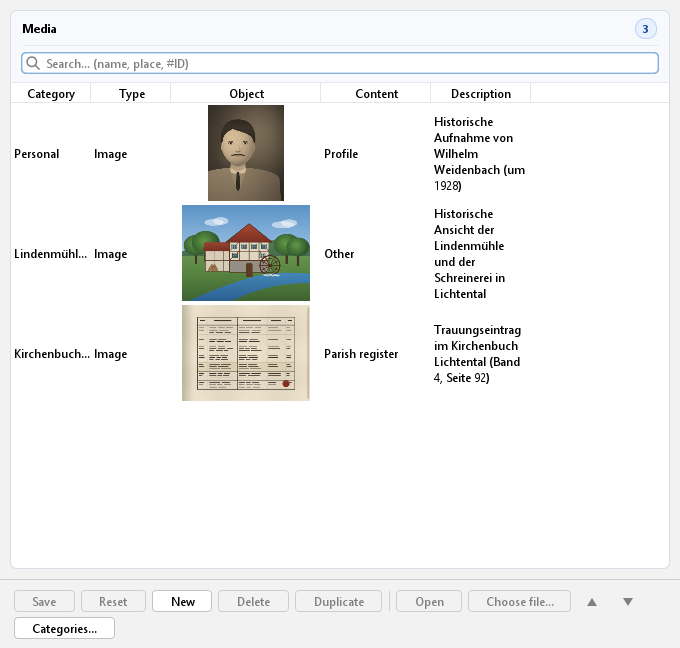
On the „Media“ tab you reference, classify and annotate files of type Image, Audio, Video and Document (such as PDF scans or parish register extracts). Media files remain ordinary files on disk while Stammbaum stores their path, category, content classification and notes.
- Adding files: Drop files directly onto the media table via Drag & Drop (dropping onto an existing row adopts its category), or click New followed by right-click → Choose file... (F4).
- Editing and ordering: Edit „Category“, „Content“ and „Description“ inline in the table. Double-click to open a file in the system viewer, press F2 to rename the file on disk, reorder entries with Ctrl+Up / Ctrl+Down (the numeric „Position“ column is hidden by default and can be shown via header right-click), and persist changes with Save (Ctrl+S).
- Automatic AI content classification: Each item's „Content“ can be Profile, Death card, Parish register or Other. Newly added images or items still marked „Other“ are classified automatically in the background – completely offline and free of charge – using metadata, face detection and local vision analysis. Manual assignments always take precedence.
- Automatic path recovery & media folders: When a file is no longer at its stored path, Stammbaum searches the optional database-specific media folders (File → Database...) first and then the global Default media folders, also recognizing moved or renamed files by their SHA-256 fingerprint (media-fingerprints.json).
Media Categories
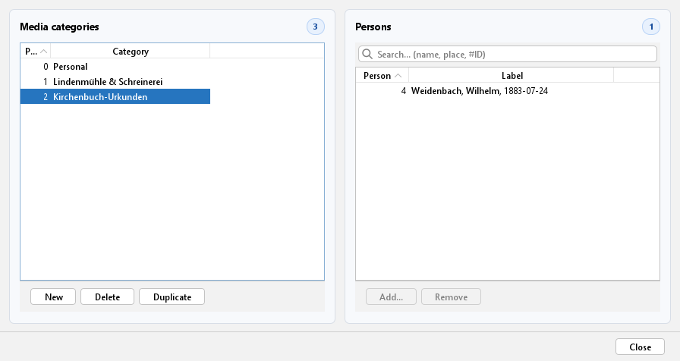
Right-click inside „Media“ and choose Categories... (Ctrl+K, enabled once media edits are saved) to manage shared media categories. While „Personal“ belongs solely to a single person, custom categories (e.g. „Lindenmühle & Schreinerei“, „Kirchenbuch-Urkunden“ or „Wedding“) let you assign any set of persons on the right so all of them share the same media items.
- Creating and duplicating: Category names must be unique. Creating a category adds the current person automatically; duplicating copies the entire person list of the source category.
- Removing persons vs. deleting a category: Removing one person on the right keeps the category and its media intact for everyone else (removing the currently viewed person simply hides the category from their tab). Deleting a category on the left deletes its media entries for all assigned persons.
- Ordering and saving: Reorder categories via Ctrl+Up / Ctrl+Down to control display order in the Media table. Changes are saved automatically when closing the dialog.
Searching, Filtering and Navigating
Search Bar

The live search bar above the person table (Ctrl+F) filters records as you type:
- Space-separated words are combined with logical AND across all person fields (e.g. Weidenbach Lichtental 1952).
- Direct ID lookup with #: Prefix a number with # (e.g. #12) to match only person ID 12.
- Single-match jump: If pressing Enter matches exactly one person, Stammbaum keeps the full list unfiltered and selects that person directly.
- Click ✕ to clear the filter or press Esc to revert your current edit. The arrow button on the right shows or hides the query bar (a coloured dot indicates active query filters).
Query Bar and Built-in Queries

Queries store filter conditions, parameters, visible columns and sort order. Whenever the Query Editor is collapsed, active conditions appear as clickable filter chips right below the search bar (clicking removes the condition on editable queries or opens the editor on immutable ones).
Three immutable standard queries are always present:
| Name | Description |
|---|---|
| Default | Standard person list with core vital columns |
| Default (compact) | Narrower layout suited for compact windows |
| Relatives | Lists blood relatives of the selected person once with their closest relationship (all multiple kinship branches are listed on the Relatives tab). |
Sixteen additional built-in queries can be freely customised or deleted in the Query Editor and restored at any time under Settings → General („Built-in queries“ → Default) or File → Import default config:
| Name | Description |
|---|---|
| Ancestors | All persons sorted by Distance to the selected person, showing their relationship path |
| Birthdays / Birthdays (all) | Birthdays in the current calendar year for living persons (or living and deceased persons) |
| Milestone birthdays / Milestone birthdays (all) | Birthdays in the current year where age is divisible by 5 (living only or everyone) |
| Death anniversaries / Milestone death anniversaries | Death anniversaries in the current year, or those where years elapsed are divisible by 5 |
| Marriages | Persons together with their current or latest spouse |
| Contacts | Persons with stored contact details (address, email, phone) |
| Potentially redundant associations | Finds persons with duplicate relationships or children sharing the same first name (pair with Comparison view) |
| Distinct: Birth name / Birth name 2 / Last name / First name(s) / Place of birth / Place of death | Six frequency tables grouping distinct names or places with their person Count via Distinct |
Person Fields and Table Controls
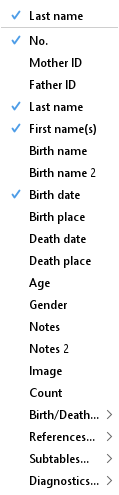
Drag column headers to resize widths and click headers to sort ascending/descending (up to three sort columns simultaneously). Right-click any column header to show or hide columns – the clicked column appears first for quick hiding.
The row context menu provides Show, <Field> of first (F5), Compare (F6 for two selected persons), Duplicate (Ctrl+D), Delete (Del), Copy row(s) (Ctrl+C), Copy cell (Ctrl+Q, macOS Cmd+Shift+C), plus quick-jump submenus to direct relatives („Grandparents“, „Parents“, „Siblings“, „Partners“, „Children“, „Grandchildren“) or „Common root“ when two records are selected.
- Core data: Primary vital fields plus Birth name 2, multi-line notes, portrait image and aggregate Count.
- Birth/Death: Extracted date parts and Min./Max. bounds for wildcard-aware age and anniversary queries.
- References: Computed relative to the active reference person. „Kinship“ fields consider bloodlines only; „Ref.“ fields also include Relations such as spouses, in-laws and step-relatives.
- Subtables: Show the latest/current entry per subtable category (Field ID = group offset + Category ID).
- Diagnostics: Helper field for spotting redundant relationships or duplicate records.
| Group | Name | Description | Type | ID |
|---|---|---|---|---|
| Core data | No. | Unique person ID | Number | 0 |
| Mother ID | Person ID of the mother | Number | 1 | |
| Father ID | Person ID of the father | Number | 2 | |
| Last name | Current family name / surname | String | 3 | |
| First name(s) | Given names | String | 4 | |
| Birth name | Maiden / birth surname (when different from Last name) | String | 5 | |
| Birth name 2 | Returns Birth name if entered, otherwise Last name (see naming convention). | String | 50 | |
| Birth date | Date of birth | Date | 6 | |
| Place of birth | Place of birth | String | 12 | |
| Death date | Date of death | Date | 13 | |
| Place of death | Place of death | String | 19 | |
| Age | Age in completed years (from birth to death or „Current date“ parameter) | Number | 20 | |
| Sex | Biological sex („M“ = male, „F“ = female) | String | 27 | |
| Notes | Single-line plain representation of notes | String | 28 | |
| Notes 2 | Multi-line scrollable notes cell (minimum row height configurable in Settings) | String | 52 | |
| Image | Profile portrait thumbnail (minimum row height configurable in Settings) | Image | 53 | |
| Count | Number of aggregated records sharing identical visible columns when Distinct is enabled. | Number | 51 | |
| Birth/Death | Min. / Max. birth date | Earliest / latest possible birth date when „?“ wildcards are used | Date | 7 / 8 |
| Birth year | Year of birth | Number | 9 | |
| Birth month | Month of birth (1–12) | Number | 10 | |
| Birth day | Day of month of birth (1–31) | Number | 11 | |
| Min. death date | Earliest possible death date when „?“ wildcards are used | Date | 14 | |
| Max. death date | Latest possible death date when „?“ wildcards are used | Date | 15 | |
| Death year | Year of death | Number | 16 | |
| Death month | Month of death (1–12) | Number | 17 | |
| Death day | Day of month of death (1–31) | Number | 18 | |
| Born since | Years elapsed since birth | Number | 21 | |
| Born since min. | Minimum years since birth (with „?“ wildcards) | Number | 22 | |
| Born since max. | Maximum years since birth (with „?“ wildcards) | Number | 23 | |
| Died since | Years elapsed since death | Number | 24 | |
| Died since min. | Minimum years since death (with „?“ wildcards) | Number | 25 | |
| Died since max. | Maximum years since death (with „?“ wildcards) | Number | 26 | |
| Note | All „since“ and „Age“ fields evaluate against the query parameter „Current date“. | – | ||
| References | Ancestor | Whether the person is a direct ancestor of the reference person („true“/„false“) | Boolean | 29 |
| Descendant | Whether the person is a direct descendant of the reference person („true“/„false“) | Boolean | 30 | |
| Related | Whether the person is blood-related to the reference person („true“/„false“) | Boolean | 31 | |
| Referenced | Whether connected by blood or directly/indirectly via relationships (e.g. marriage) | Boolean | 32 | |
| Kinship category | Gender-neutral plural kinship category (e.g. „Parents“, „Siblings“) | String | 34 | |
| Kinship label | Gender-specific kinship term (e.g. „Mother“, „Cousin“) | String | 35 | |
| Kinship width | Distinguishes full vs. half collateral relatives (Kinship horizon ≠ 0):
|
String | 39 | |
| ° | Civil-law degree of kinship (number of mediating births to the reference person) | Number | 33 | |
| Kinship generation | Generation offset relative to the reference person (0 = same generation, −1 = parents, −2 = grandparents, +1 = children; row index of the Relatives Graph) | Number | 44 | |
| Kinship horizon | Horizontal collateral offset (0 = direct line, 1 = siblings & their descendants, 2 = aunts/uncles & cousins; column index of the Relatives Graph) | Number | 46 | |
| Kinship path | Shortest blood path of parent („P“) and child („C“) steps; its length equals the kinship degree | String | 42 | |
| Kinship branches | Number of distinct blood paths (0 = unrelated, 1 = standard, > 1 when parents are related / pedigree collapse) | Number | 36 | |
| Ref. category / Ref. category 2 | Categorical reference term without / with in-law and step-relative resolution (e.g. „Parents-in-law“) | String | 48 / 49 | |
| Ref. label | Gender-specific reference description (e.g. „Father of husband“) | String | 40 | |
| Ref. label 2 | Gender-specific reference description resolving in-law and step terms (e.g. „Father-in-law“) | String | 43 | |
| Distance | Weighted step distance across parent, child and partner links (+1 per link; links beyond non-blood relations add +7) | Number | 37 | |
| Ref. generation | Generation index including partner relations (marriages/partnerships are generation-neutral) | Number | 45 | |
| Ref. horizon | Horizon index including non-blood relations (+1 per partner relation) | Number | 47 | |
| Ref. path | Shortest reference path combining parent, child and relation steps | String | 41 | |
| Sync note | Reference fields follow the active selection unless „Sync“ is unchecked in the table footer. | – | ||
| Subtables | Contacts | Phone, Email, Facebook, Instagram, Skype, Snapchat, Tiktok, Youtube, X, Telegram | String | 1000 + ID |
| Address | Residence, Leisure | String | 1100 + ID | |
| Activity | Education, Work, Hobby | String | 1200 + ID | |
| Event | Baptism, Communion, Confirmation, Funeral, Nationality, Emigration, Immigration, Adoption | String | 1300 + ID | |
| Relation | Marriage, Partnership, Friendship, Religious marriage | String | 1400 + ID | |
| Diagnostics | Redundant associations? | Counts relationship pairs of the same category pointing to the same person or to persons sharing the same first name | Number | 38 |
Pinning the reference person with „Sync“: Queries containing reference columns (such as „Relatives“ or „Ancestors“) normally recompute whenever you select another person. If you want to step through and edit the relatives of one specific person without rebuilding the list on every click, uncheck Sync in the status bar below the person table:

Query Editor
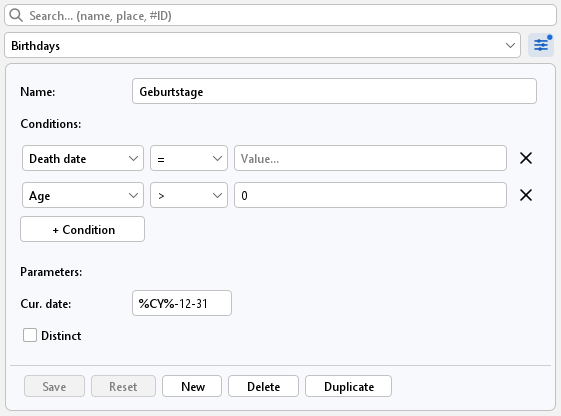
Click the sliders icon on the right of the query bar to open the Query Editor and create, modify, duplicate or delete custom queries with instant live preview:
- Name: Unique query name in the selector.
- Conditions: Any number of AND-combined rows (+ Condition) with field, operator (=, ≠, <, ≤, >, ≥, Regex for regular expressions, Mod for modulo divisibility) and space-separated OR operands. Leaving the value empty tests for empty (=) or non-empty (≠).
- Parameters: „Current date“ sets the reference date for age Calculations using %CY% (current year), %CM% (current month) and %CD% (current day). Enabling Distinct collapses rows with identical visible columns and counts them in Count.
- Layout: Visible columns, column widths and sort order are stored as part of the query.
Three practical query examples (ready to try on demo.sqlite):
| Goal | Conditions & Parameters |
|---|---|
| Living persons born in Lichtental or Steinfurt | Condition 1: Death date = (empty) • Condition 2: Place of birth = Lichtental Steinfurt |
| 10-year milestone birthdays this year | Condition 1: Death date = (empty) • Condition 2: Age > 0 • Condition 3: Age Mod 10 • Parameter „Current date“: %CY%-12-31 |
| Most frequent places of birth | Show only Place of birth and Count • enable Distinct • sort descending by „Count“ |
Favorites and Person History
Bookmark frequently visited people via Favorites → Add to favorites. Bookmarks appear directly inside the „Favorites“ menu (right-click an entry to remove it) and can be reordered via Favorites → Manage favorites.... In addition, the bottom of the View menu keeps an automatic chronological history of recently viewed persons (size configurable in Settings).
Navigation: Scrolling and Zooming

Pan across large views via scrollbars, the mouse wheel or – in graphical canvases such as „Tree“ and „Relatives Graph“ – by clicking and dragging directly on the canvas.

- Drag the slider (with gentle snap at 100 %), click − / +, or turn the mouse wheel over the zoom bar to zoom around the centre.
- Click the percentage readout (100%) or double-click the slider knob to reset straight to 100 %.
- Hold Ctrl (Cmd on macOS) while scrolling the mouse wheel inside the view to zoom relative to the cursor position.
Family Tree and Kinship Analysis
Tree
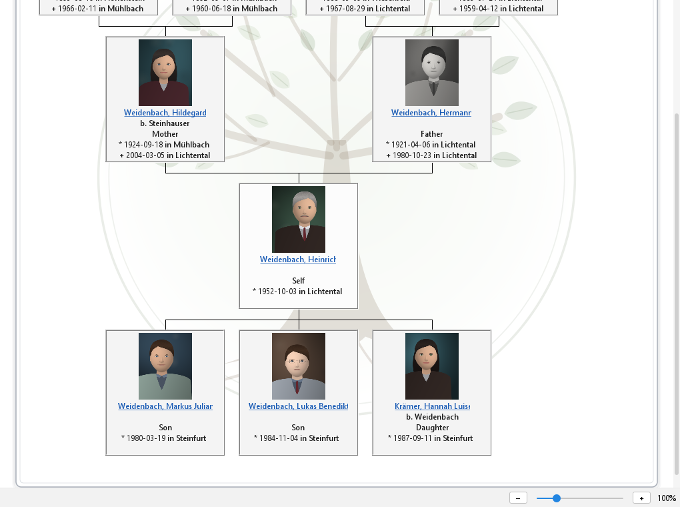
The „Tree“ tab renders ancestors and descendants of the selected person („Self“), optionally flanked by siblings on the left and partners or co-parents on the right. Click any blue person link to re-centre the tree on that individual.
Right-click any node to open its full-size portrait (Open image), temporarily Hide specific nodes, or toggle a partner's own Ancestors and Descendants. These visibility adjustments apply directly to PNG tree exports. Node dimensions, colours, line styles, frames and watermarks are configured under Settings → Tree.
Relatives
The „Relatives“ tab lists all blood relatives of the selected person in a customizable table showing exact kinship label, legal degree, generation, horizon and full/half status – including multiple rows whenever someone is related along more than one family branch. Double-click to jump to a relative, or choose File → Export relatives... for an Excel export.
Relatives Graph
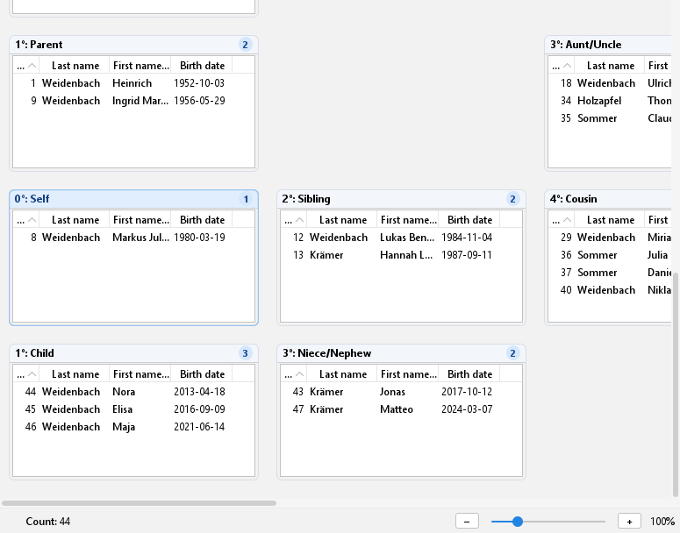
The „Relatives Graph“ arranges all blood relatives in a clear two-dimensional kinship matrix around 0°: Self:
- Vertical axis (rows = generations): Older generations appear above (parents, grandparents …), peers of the same generation on the middle row (siblings, cousins) and younger generations below (children, grandchildren, nieces/nephews …).
- Horizontal axis (columns = collateral lines / horizon): Column 0 on the left holds the direct ancestor/descendant line; columns to the right represent collateral lines branching from parents (siblings), grandparents (aunts/uncles & first cousins) and earlier generations.
- Interaction: Each group box header displays legal degree, group label and count (e.g. 1°: Parents: 2). Double-clicking any person re-centres the graph on them; drag-panning and smooth zooming work just like in the Tree tab.
Kinship Path
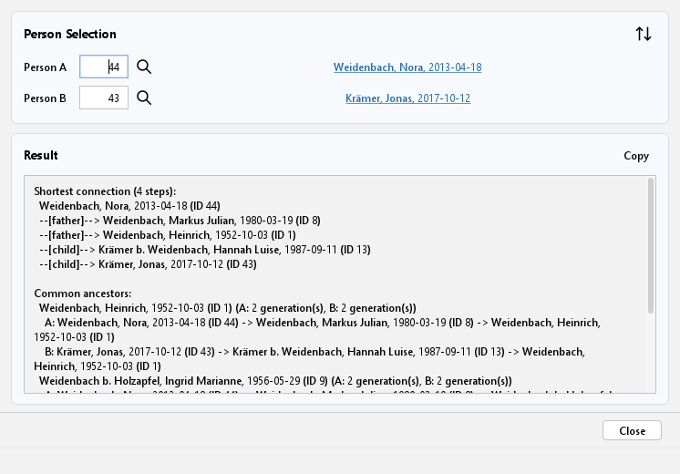
Under Edit → Kinship path... you choose Person A (pre-filled with the active person) and Person B using the standard person selector. Stammbaum immediately calculates:
- the shortest connection across parent, child and partner links step by step,
- all nearest common ancestors with generation distances and descent chains (A: … / B: …),
- the exact blood relationship (ancestor/descendant, full or half-siblings, cousin degree and removal, or collateral kinship) together with the civil-law degree of kinship.
Data Quality, Duplicates and Scripts
Comparison View
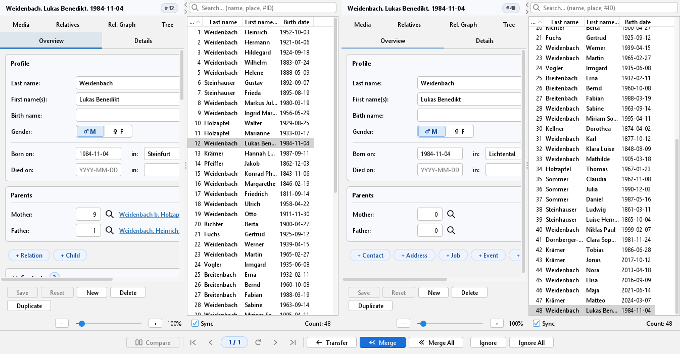
Use View → Comparison view to detect duplicate records and reconcile datasets after a database or GEDCOM import – or select any two people in the person table and press F6 (Compare). Each side displays a dedicated header bar with the person's name and #ID, while the window title bar shows both selected persons (Left ↔ Right); actions such as favorites, export, and kinship path act on the currently focused side.
- Automatic candidate matching: Records with matching last name, first name and birth date (and non-conflicting parents) are paired automatically, placing the higher person ID on the right and highlighting differing fields.
- << Apply vs. << Merge: << Apply copies missing field values into the left person without deleting the right record. << Merge (and << Merge all) combines all fields, subtables, media links, parent/child/partner references and note links into the left person and deletes the duplicate on the right.
- Browsing and ignoring pairs: Step through candidates using the arrow buttons and = (Sync). Click Ignore to permanently hide distinct people who merely share a name (manageable anytime under Edit → Ignored comparison pairs...). Returning to View → Single view restores your previously active query.
Scripts
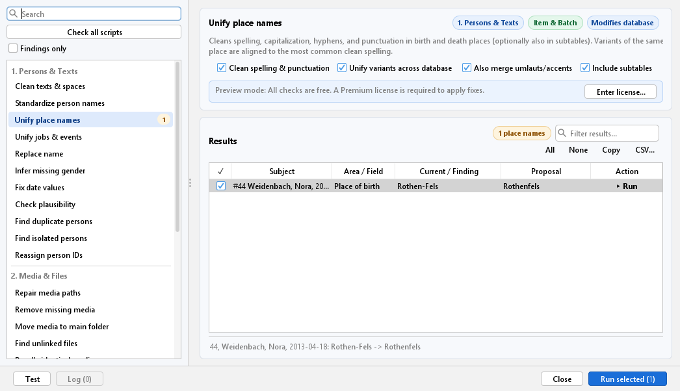
Edit → Scripts... organizes 27 inspection, cleanup, and media-management scripts across three thematic groups (plus an admin script to clear all notes). Test and Check all scripts are free in preview mode and generate a highlighted diff without altering data; applying fixes via Run selected or Run requires a Premium license. Rows can be checked individually, opened directly in the app or image comparison (Open), ignored, filtered via Findings only, exported to CSV..., and audited in the Log. Before modifying runs, Stammbaum stores a per-script automatic backup that can be restored anytime via Restore backup....
| Group & Script | Mode | Description |
|---|---|---|
| 1. Persons & Texts: Clean texts & spaces |
Item & Batch | Removes leading, trailing, and repeated spaces as well as spaces before punctuation across person fields, subtables, and media descriptions. |
| Standardize person names | Item & Batch | Promotes standalone birth names to last names, clears redundant birth names, fixes capitalization and particles, hyphenates compound surnames, and optionally unifies variants. |
| Unify place names | Item & Batch | Cleans spelling, case, and punctuation in birth/death places (optionally including subtables and folding umlauts/accents). |
| Replace name | Item & Batch | Searches and replaces a specific person or place name across the database (optionally also in formatted notes). |
| Unify jobs & events | Item & Batch | Cleans and aligns spelling variants of job titles, organizations, and events. |
| Fix date values | Item & Batch | Converts non-standard date formats across persons and subtables; unparseable free text can optionally be moved into notes. |
| Infer missing gender | Item & Batch | Derives missing M/F genders from unambiguous parent roles and first names. |
| Check plausibility | Inspection / Single Action | Finds contradictions in lifespans, parental ages, chronology, ancestor cycles, and likely missing birth names (with direct apply action). |
| Find duplicate persons | Inspection | Detects likely duplicate persons (including married/birth name links) and opens pairs directly in Comparison view. |
| Find isolated persons | Inspection | Lists unlinked individuals and disconnected subtrees (family islands). |
| Reassign person IDs | Full Dataset | Renumbers all person IDs by current unfiltered table order and updates every reference and note link. |
| 2. Media & Files: Find unlinked files |
Inspection / Assign | Lists files in configured media folders not yet linked in the database, with direct person assignment. |
| Repair media paths | Item & Batch | Restores missing, renamed, or moved paths by filename and SHA-256 fingerprint, fixes letter case, and optionally switches external paths to configured media folders. |
| Move media to main folder | Item & Batch | Copies or moves external media files into the primary media folder (deduplicating via checksum and optionally storing relative paths). |
| Remove missing media | Item & Batch | Removes database entries whose files no longer exist (never deletes files on disk). |
| Check duplicate filenames | Inspection | Reports media entries sharing the same filename across different directories. |
| Group shared media | Item & Batch | Cleans duplicate file paths on the same person and groups files used by multiple persons into a shared media category. |
| Bundle identical media | Item & Batch | Detects byte-identical files by checksum, merges links onto one file, and optionally deletes redundant copies. |
| Find similar images | Inspection | Detects visually similar images with adjustable sensitivity and opens a side-by-side image comparison. |
| Reset / Detect media content | Item & Batch | Resets „Content“ to „Other“ or classifies entries via metadata and local image analysis as Profile, Death card, or Parish register. |
| Rename media files | Item & Batch | Renames assigned Profile, Death card, and Parish register files in media folders using BirthName FirstName BirthYear Content (or category names). |
| Find persons without portrait | Inspection | Lists all persons without an image marked „Profile“. |
| 3. Database & Maintenance: Repair media / favorite positions |
Full Dataset | Closes numbering gaps in media, media-assignment, and favorite positions. |
| Repair database integrity | Item & Batch | Cleans broken parent references, orphaned subtable/favorite/media links, unused categories, and broken note links. |
| Check & compact database | Full Dataset | Checks local SQLite file integrity and reclaims unused space using VACUUM & ANALYZE. |
Import, Export and Drag & Drop
Import Database
File → Import database... imports all records from another Stammbaum database (local .sqlite or MySQL, PostgreSQL or Oracle server) into the open database, renumbering IDs without collisions so duplicates can afterwards be merged cleanly in Comparison view.
Import GEDCOM
File → Import GEDCOM... (or dropping a .ged file) imports GEDCOM 5.5, 5.5.1 and 7.0 files (UTF-8 with/without BOM and ANSEL), including vital events, marriages (with engagement, banns and marriage contracts), addresses, contacts, occupations, godparents/witnesses (ASSO/_ASSO), primary portraits (_PRIM Y), companion media folders (including Heredis Media/Médias), French Republican calendar dates (@#DFRENCH R@) and RTF/HTML note conversion.
Export GEDCOM and Partial / Privacy Export
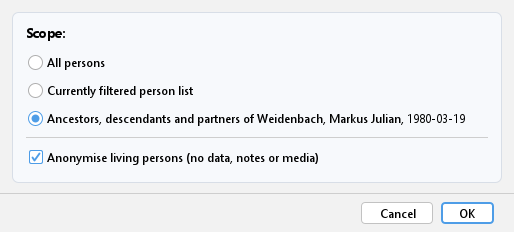
File → Export GEDCOM... writes a UTF-8 GEDCOM 5.5.1 file. In the Export options dialog you choose the scope (All persons, Currently filtered person list, or Ancestors, descendants and partners of the active person) and can enable Anonymise living persons, which replaces living individuals' names with „Living“ and omits their dates, places, notes, subtables and media while keeping family links intact.
Export Tree as PNG
File → Export tree... saves the active „Tree“ view (including watermarks, frames and manual node visibility) as a crisp high-resolution PNG image.
Export Persons and Relatives to Excel
File → Export persons... and Export relatives... write the current table columns and rows (or just the selected rows when multiple rows are highlighted), including visible portrait thumbnails, to an .xlsx workbook.
GEN-Master Import and Export
Legacy GEN-Master (V3.1.4) .gm3 databases can be converted by exporting the four tables fam, fabild, fame and famadr as XML via „MDB Viewer Plus“ (alexnolan.net) and importing that folder via File → Import GEN-Master XML.... Conversely, Export GEN-Master XML... writes those four XML files.
Drag & Drop
- Local database (.sqlite / .accdb): Opens the dropped database immediately (Access files with optional conversion to SQLite).
- GEDCOM file (.ged): Imports into the open database after confirmation.
- Media files: Adds dropped files to the active person (dropping onto a row on „Media“ adopts that row's category).
Settings, Data Storage and Reference
Editing Settings
Open Edit → Settings... (or Preferences in the macOS app menu) to configure appearance, media folders, tables, and tree layout via a searchable sidebar navigation (Appearance, Media & Storage, View & Tables, and Family Tree with live preview). Section Default buttons reset individual blocks.
General
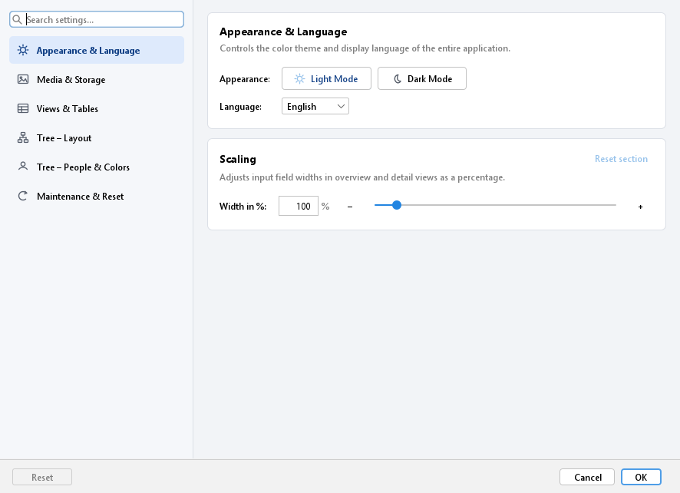
| Setting | Description |
|---|---|
| Appearance | Switches live between Light Mode and Dark Mode. |
| Language | UI and manual language (Deutsch, English, Français, Italiano, Español, Português, 中文), previewed immediately and saved on „OK“. |
| Default Media Folders | Ordered list of global search folders for media files (including SHA-256 fingerprint recovery) when no database-specific folders are configured. |
| Image cache / Clear cache | Memory budget for cached thumbnails; „Clear cache“ frees memory immediately. |
| Reference details | Selects which person attributes appear in window titles, parent links and history entries. |
| Default query | Query activated automatically after opening a database. |
| Max. person history | Maximum number of recent persons kept in the „View“ menu (0 to 20). |
| Width in % | Scales input field widths (80 % to 300 %). |
| Built-in queries | Restores modified or deleted built-in queries without affecting custom queries. |
| Tables in Overview and Media | Resets column widths and visible columns of subtables, Relatives and Media tables. |
| Min. row height „Image“ / „Notes 2“ | Minimum row height in pixels when the respective column is visible. |
Tree
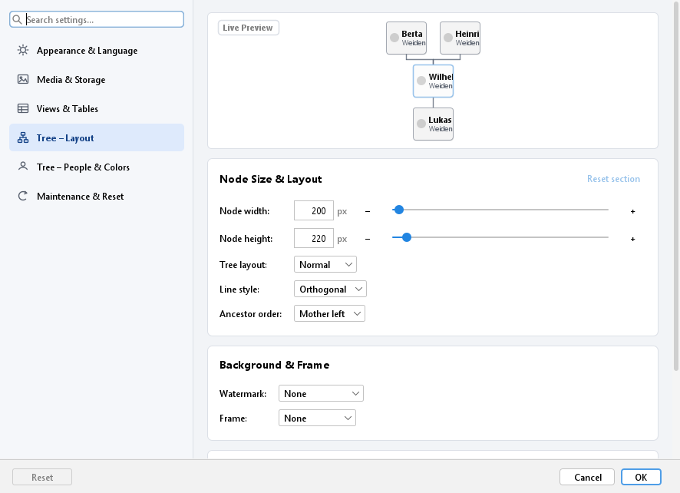
| Setting | Description |
|---|---|
| Node width / Node height | Dimensions of person cards in the tree in pixels. |
| Node background color | Default card background colour. |
| Birth name only | Displays only the birth/maiden surname inside tree cards. |
| Tree shape | Normal centres each person under their ancestor branch; Compact centres each generation row tightly. |
| Line style | Orthogonal draws right-angled connectors; Straight draws direct lines. |
| Watermark / Frame | Background motifs („None“, „Family tree“, „Parchment“, „Foliage“, „Compass rose“, „Heraldic“) and decorative borders („None“, „Classic“, „Certificate“, „Floral“, „Wood“, „Modern“). |
| Ancestor order | Places either the maternal („Mother left“) or paternal („Father left“) branch on the left. |
| Max. ancestor / descendant levels | Maximum generations rendered upward and downward. |
| Self / Relations / Siblings | Custom highlight colours and display options for partners („None“, „Marriages only“, „All partners“), co-parents and siblings. |
Importing Settings and Default Config
File → Import config... merges settings and queries from a saved config.txt file, while File → Import default config restores built-in queries while keeping your custom queries intact.
Data Storage and Configuration Files
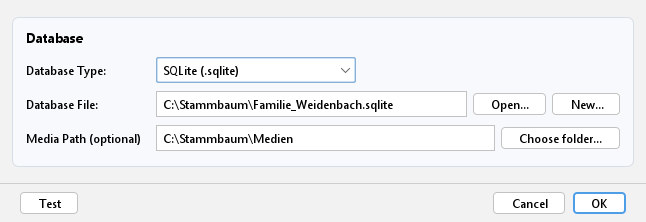
The default format for new databases is SQLite (.sqlite). Older Access files (.accdb) can still be opened. When opening one, Stammbaum offers to convert it to the new format; alternatively use File → Convert Access Database to SQLite.... The original file stays unchanged.
Data is stored either locally in a SQLite (.sqlite) file or on a relational database server (MySQL, PostgreSQL or Oracle – server JDBC drivers are downloaded automatically on first use). Connect, create, optionally set a database-specific media folder, or test databases under File → Database...; recent connections appear under File → Recent Files... (right-click to remove).
Global configuration (config.txt), media fingerprints (media-fingerprints.json), cached JDBC drivers and offline AI models (models/) reside in your local app-data folder:
- Windows: %LOCALAPPDATA%\Stammbaum
- macOS: ~/Library/Application Support/Stammbaum
- Linux: ~/.local/share/Stammbaum or $XDG_DATA_HOME/Stammbaum
License and Updates
Stammbaum distinguishes three license tiers:
- Evaluation mode (unlicensed): Imports (GEDCOM, GEN-Master, databases), viewing any dataset, and read-only previews under Scripts (Test / Check all scripts) remain unrestricted; editing, creating, deleting, or merging beyond 50 persons requires a license.
- Standard License: Removes the 50-person editing limit.
- Premium License: Unlocks applying script fixes and assigning unlinked files directly to persons.
Enter your license key under Help → License and Update... (or directly via Enter license... in upgrade prompts) – activation takes effect immediately and stays visible in the window title bar and Help → About.... The same dialog configures automatic update checks (hidden in Microsoft Store builds where updates are handled by the Store).
Keyboard Shortcuts Reference
On macOS, replace Ctrl with Cmd:
| Area | Shortcut | Action |
|---|---|---|
| General & Help | F1 | Open context-sensitive help for the active tab or dialog |
| Ctrl+S | Save current changes (person, subtable or media) | |
| Esc | Revert pending edit in the focused text field, or close dialog/help | |
| Alt+Left / Alt+Right, F3 | Navigate back/forward in the manual or jump to next search match | |
| Person List & Search | Ctrl+F | Focus the live search bar (also works inside the manual) |
| F5 | Adopt field value of the first entry | |
| F6 | Compare two selected persons in Comparison view | |
| Ctrl+C / Ctrl+Q | Copy selected row(s) / copy active cell (macOS: Cmd+Shift+C) | |
| Ctrl+Space | Open auto-completion suggestions manually | |
| Subtables & Media | Ctrl+N / Ctrl+D / Del | New entry / duplicate entry / delete entry |
| Ctrl+Up / Ctrl+Down | Move subtable entry, media item or media category up / down | |
| F4 / F2 / Ctrl+K | On „Media“: choose file / rename media file on disk / open media categories | |
| Details & Zoom | Ctrl+B / Ctrl+I / Ctrl+U / Ctrl+K | On „Details“: Bold / Italic / Underline / Insert web link |
| Ctrl+Mouse Wheel | Zoom smoothly in and out (Overview, Tree, Relatives Graph and Manual) |